Showing posts with label text. Show all posts

Sunday, June 28, 2020

How to type grave accent on a QWERTY keyboard.


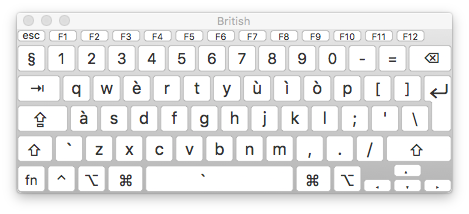
Keyboard Viewer shows letters
where you can type the grave accent
If you are used to the QWERTY layout on your keyboard but occasionally have to type in French or other languages with accents, you don't have to switch to the French AZERTY layout.

To type the grave accent, the one that goes to the left, press the Option (Alt) key and tap on the accent key to the left of the Z. Then type an 'a' and you get à the preposition instead of a the form of avoir (to have). This is good for capitals as well — À.

The same works for all other vowels. The screenshot here shows the QWERTY layout with all the keys where you can type the grave accent.

PS: I've checked this trick for Pages 8.1 version, it still works.

Accent grave: Accent qui marque le e ouvert. L’accent grave sert aussi à distinguer des homonymes : où (adverbe) et ou(conjonction); à (préposition) et a (verbe avoir).

Wednesday, September 21, 2016

Watch your word count as you type.

Read this previous post on word count in Pages

Catriona, a reader of this blog, asks:
...I'm submitting an assignment that has a maximum word count and I'm trying to get down to the maximum, so it would be really nice to know when I've got there.

I have written here many times about how to get the word count in Pages. In the current version of Pages 5.6.2. word count is displayed at the bottom left corner of an open document. Make sure that under the View menu in your open Pages document the "Show Word Count" option is activated. 

In the bottom left corner of the document there will be a tab that shows the actual word count as you type. It is a tab which, when you click on it, opens a drop-down menu with options such as characters, paragraphs, line and words. Choose the one that suits your requirement. 

Catriona seems to have more words than she is required to produce to complete her assignment.  In this case, when the text needs to be redacted (cut), go through it paragraph by paragraph, line by line and find what can be left out. Cut and watch the word count automatically change to show the actual number of words. Repeat until you reach your target. 

A few screenshots here show the tab and the menu.

The word count tab —
A small text with the word count tab set to show characters —


Pages View menu with 'Show Word Count' option shown. Slide down to select it and activete — 


Related Posts Plugin for WordPress, Blogger...

Copyright

© 2006-2010, 2010-2017 Alexander Anichkin, All Rights Reserved.
All content is original and was created by me, the author and publisher of I Work in Pages.
Quotations and images are attributed where applicable.
No republication without express prior permission.
Blog template by Blogger with customisation by the publisher.