Showing posts with label design puzzles in iWork. Show all posts

Friday, March 01, 2013

The Square Puzzle: 28 - 35.


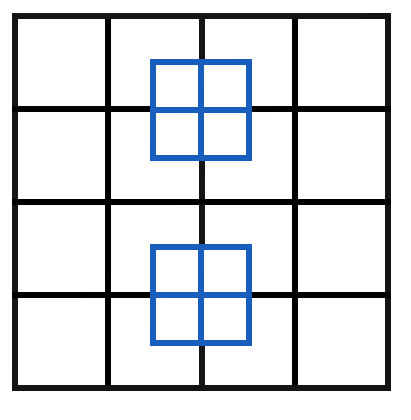
In previous posts we've counted 28 squares inside the grid shown below. Next, the four larger squares in each corner of the grid. I am showing them here, as in previous posts, by separately selecting the borders of table cells and changing their colour from black to blue for demonstration.

To recap the process described in previous posts:

1. To select a cell border, click once on the table to select it.
2. Click again on a grid line, this will select the whole line, right across the table.
3. And click again - once, not double click - on one of the borders of a cell. This will select only one border in one cell.
4. To select all the cell borders that you want to select, press Shift after you've selected the first one and click on the other one by one.
5. In the Table Inspector, click in the small colour well under Cell Borders, and choose a new colour.

This picture shows a square comprising four smaller squares inside it. I've changed the colour of outer borders of four cells.

31
Inside the table we have four squares like this one (the other three are not shown here.)

In the previous post we counted twenty seven squares. Now we have thirty one: 27+4=31

Next, let's find and show four more squares inside the table, each consisting of three cells across and three down. Use the technique described above to select the cell borders and change their colour to blue.

Here they are.
One -
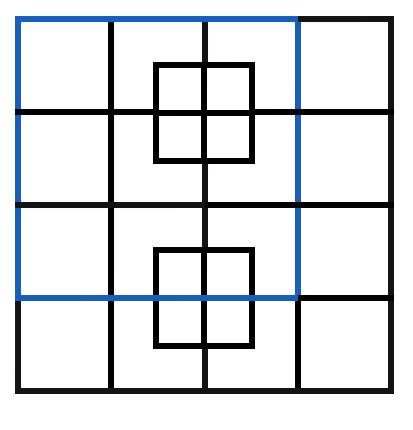
32
Two -
33
Three -
34
Four -
35

Thirty one plus four, thirty five squares. 31 + 4 = 35. In the next post we'll find another four squares hiding within this table.

As I said in previous posts, the ability to select cell borders separately and change their colour, thickness and colour fill (the colour inside the cell) is an exciting design tool. Like here, you can use it in puzzles, including crossword puzzles. You can design coupons where some cell borders are invisible.

Or you can create 'open angles' to use in the layout of your newsletter or brochure. And another use for tables is when you need to group a photo and a piece of text. To read about this last technique, see an earlier article on I Work in Pages: 'An underused layout tool — tables'.

Saturday, February 16, 2013

The Square Puzzle, 25-27.


Continuing with the square puzzle I am now counting the squares in the two small tables of four squares inside the large 16-square table. Adding eight to seventeen we get 25 squares.

25
1. To select the tables, click on the first once, press Shift and click on the second.
2. They will be both selected (highlighted).
3. Go to the Table Inspector, click in the small colour well under Cell Borders and choose a colour when the Colour Viewer opens.

The new colour will be applied to all the lines in the tables' grid.

The outside contours of the small tables form two more squares. Add them, and get 27 squares.

27
1. To show the outside squares, change the colour of the lines inside to black.
2. To do this, click on the table once to select it.
3. Click again on the central horizontal line to select just it.
4. Press Shift and click on the vertical central line. They will be both selected.
5. Click in the colour well and choose black.
6. Repeat for the second small table.

The second picture above shows the two criss-crossing lines in the second table still selected.

I have published an article on how to design coupons using the unique design feature available only for tables — the ability to select just one side of the table or cell grid and change its colour, thickness etc. This can also be used in crossword puzzles and in page design.

Friday, February 15, 2013

How many squares can you count? (tables in iWork)

Here's a puzzle. You must count as many squares as possible in this grid.

I've counted 51.
(update 25 March: after a recount, I could only find 40!)


While you count I want to show you how to design this grid, and then how to highlight the squares you found.

To design the grid, import a table into an iWork document. Go to the Toolbar and click on the Table icon. iWork will create a default table in your document.

1. Go to the Table Inspector.
2. Uncheck header row.
3. Set the number of rows and columns at four.
4. Make the cells square: click in the Row Width and Column Width windows and type the same number.  Here it is 2.63 cm
5. Set the thickness (width) of the lines in the grid. Here it is five points.
6. If you want a colour that is different from default, click in the colour well under Cell Borders (not the large one under Cell Background!) and choose your colour.

When you create a table in Pages word processing mode it may appear as an inline object that is anchored to a point in the document. Go to Wrap Inspector and change the setting to Floating.

7. Create another table and set the number of columns and rows to two.
8. Make the colour of the grid and the thickness of its lines the same as the larger grid.
9. Change the size of the second table so that its square cells are (roughly, it's only a puzzle!) a quarter of the size of the cells in the large grid.
10. Drag the small table to sit flush where the middle squares of the first and second rows of the large table come together.

11. Duplicate (copy) the small table and move the duplicate to the middle of the third and fourth rows.

Now that the puzzle is ready, count the squares.

You can try to do it mentally or marking them on a scrap of paper. Here, I will highlight each square with a different colour.

First, click on the large table to select it. In the Table Inspector, click on the colour well under Cell Borders and choose different colour. We have sixteen squares here.

16
Next, the large square that forms the outside perimeter of the grid. It's seventeen squares now:

17
1. To change only the outside lines, click on the large table to select it all.
2. Then click again on the left side to select just the line on the left.
3. Press Shift and click on the other three sides. All four will be selected.
4. In the Table Inspector, click in the colour well under Cell Borders and choose a colour.

I'll carry on counting in the next post, but meanwhile have a look at an earlier article in 'I Work in Pages' to see how the 'select cell borders' feature can help in designing coupons: 'How to design coupons in Pages'. 
Related Posts Plugin for WordPress, Blogger...

Copyright

© 2006-2010, 2010-2017 Alexander Anichkin, All Rights Reserved.
All content is original and was created by me, the author and publisher of I Work in Pages.
Quotations and images are attributed where applicable.
No republication without express prior permission.
Blog template by Blogger with customisation by the publisher.