A simplified version of this post in four easy steps with 'I♥NY' as an example is here.
Transparent letters with images showing inside them create a striking design effect, very attractive for magazine covers, flyers, posters or cards. I have seen claims that it is not possible, but in fact it can be done in Pages in a few very simple steps.
If you are an advanced user just this clue should be enough:
turn your text into an image and then 'rub out' the letters with Alpha.
And here is a detailed step-by-step how-to:
1.
Select photos. Here I took three of the most striking images of Normandy: Mont-Saint-Michel rock with its towering abbey, 11th Century Bayeux tapestry which depicts the Norman conquest of England in 1066 and the American Military Memorial above Omaha Beach near Coleville-sur-Mer.
 |
| Blend photos into a strip |
2. If you haven't done so when opening a blank Pages document, at this point go to Document Inspector, choose
Page Setup and click on landscape (horizontal) composition. That way you can make photos much larger which makes it easier to work with small details.
 |
| Add frame with blurred edges |
3. Put photos in a strip, adjust sizes and in Graphic Inspector add soft picture frame. As you see, now photos flow, blend one into another because of the soft, semi-transparent edges. Move Scale slider to increase or reduce the blur at edges.
 |
| Mask photos to highlight detail |
4. Adjust the sizes of photos again and then
use Mask (if it's not in your document toolbar, then it is under Format Menu) to select just the part of the photo you want to use in your composition. Here you can see that I masked much of the very large photo of Bayeux tapesry to highlight the knight on horse. It takes practice to master masking, but it's worth it. Here are three ways to work with the Mask:
- Click Mask and drag the white square handles to change dimensions of the mask - the image that will appear in your document.
- Click and hold on the photo inside the frame, drag to move the photo itself inside the mask so that only the detail you want shows.
- Click on the photo, drag handles of the photo to resize it. When finished hit return or click on the black Edit Mask box.
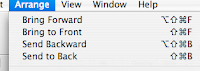
5. As you import images into your Pages document the latest goes on top of the previous. For example, if I put Mont St.Michel first, Bayeux tapestry second, then it would cover the Mont. And the American Cemetery would go over the tapestry. To change the way photos are layered go to Arrange Menu>
Bring to Front or >Send to Back. In my example the Bayeux tapestry detail is in front of both the Mont and the Cemetery.
Now, the crucial bit, the text.
 |
| Squash text with spacing |
6. You may want to ad a new page to your document or open a new one.
Type your words, choosing the richest, thickest font or font variation. You need this so that images are discernible within letters. Here I used Myriad Pro Black Condensed, but Helvetica, Verdana and many other font families have bold and condensed variations. Impact font is very thick. Make text as large as your page allows. Here the size is 177 points. And another tip: reduce character spacing to
squash text so that letters just touch or nearly touch one another. Don't overdo, make sure the word(s) are easy to read.
7. Now, do one of the following: make a screenshot of the text (Command+Shift and type 4, drag crosshairs over the text), print your page to PDF or to JPEG (iPhoto). These three options give you an
image of the text.
 |
| Rub out letters with Instant Alpha |
8. Go back to the document with your photo strip and import the image of the text into it. Move the image over the photos and click on
Alpha tool (if it's not in your toolbar, it is under Format menu). Click on the letters and drag to make them transparent. You should see the images through letters now!
9. Next, resize and move your text-image around to make sure that crucial details of the images within letters are not clipped. Here, for example, the spire of the Abbey and the head of the knight should be clearly seen. You may have to resize or move the photos to achieve the perfect look.
We can stop here. All the steps described so far shouldn't take longer than 30 minutes to accomplish. For a more striking effect read the next three steps.
10.
Put the text on coloured background. Go back to the beginning of step 6 and in Text Inspector click on More tab, in Background Fill check Paragraph fill box and click on colour panel to choose colour. Make sure that text and background have contrasting colours. Complete steps 6, 7, 8 and 9 and go to step 11.
11. To give letters voluminous, 3D feel
add shadow to the text-image in Graphic Inspector. Try changing the colour, offset, blur and opacity of the shadow. Adjust the direction of the shadow by rotating the wheel in the Inspector. You will see how your letters suddenly stand out.
12. Next,
reduce opacity of the text-image to make the underlying photos just visible. In Graphic Inspector slide the opacity control to somewhere between 60 and 80 percent. You should find a fine balance: making the background too transparent reduces the impact of text, but making it too solid will lose photos to a viewer. If you'd ever observed how people watch images, you would have noticed that they love investigating small or half-hidden details. This is why this trick makes the final result so attractive.
And of course you can 'draw' letters or original shapes in Pages and fill them with your images - or take solidly coloured shapes from templates (Catering Brochure, for example, has editable 'knives and forks').
Original photos courtesy of the Normandy Tourist Board (CRT Normandie)
Update (Feb.2015) : This article shows menus from an older version of Pages. While basic techniques described here remain the same, some menus will look different in the current version of Pages. This screenshot shows where to find Picture Frames in the current version. Select Picture Frame from the drop-down menu and then click on the picture icon to open a selection of different frames:
Read more in my new book '
iWork for Mac OSX Cookbook' (2012). Follow me on Twitter at
iworkinpages, like my page
I Work in Pages on Facebook and add me to your circles
on Google+.