Showing posts with label MS Office and iWork Pages. Show all posts

Saturday, May 29, 2010

The Big Apple: Why Mac Rules

Apple has pushed past arch-rival Microsoft to become the world's biggest technology company, it is reported this week. Changes in the share price values of the two in Wednesday's choppy trading left the total value of Apple at $222bn (£154bn). Microsoft is now valued by investors at $219bn. However, Microsoft still enjoys higher profits than Apple. Its most recent annual net profit was $14.6bn (£10bn), compared with $5.7bn for Apple. Microsoft also reported bigger full-year revenues of $58.4bn, with Apple on $36.5bn.

Much of the credit, if not all, should of course go to Steve Jobs, the wildly creative and energetic genius of design and marketing, who, with Steve Wozniak,  was also the inventor of the original Mac, the first really personal computer.
"ease of use combined with excitement of accomplishment. I see it in every Apple product"
This isn't just another battle of corporate giants. It's not just a battle of brands with Apple enjoying a passionate following which no other international brand perhaps enjoys. Apple and Microsoft are two different, if not opposite attitudes to life and the creative element in it. To me, it is the battle of the original vs the mundane. Of all the things that can be said about Apple Mac,  the closest to me is that it inspires creativity.

But how? I have often thought about it and tried to understand - why? what's in it? where is that core element in all things Apple, that clicks in with its fans - and even neutral users? 

Strip off the inimitable beauty of design (every new Mac quickly turns into a generic image of the product family, just look at cartoons or product placements in films); ignore the hard to beat range and intensity of the outpour of new high-tech cutting-edge products, both computers and gadgets, 'hard' and 'soft' (iTunes, iWork, iMac, iPod, iPhone and now iPad); take away no-worry-about-viruses factor; discount the solidity of the current OSX main software (based on Unix); overlook the compromises with the opposition, i.e. flexibility and manoeuvre  (iTunes work on Windows, MS Office has a Mac version, current Macs are increasingly Intel-based and iWork programmes are compatible with corresponding MS Office and Open Office applications, there is hardly anything incompatible about Macs these days), try to forget about personalities (Jobs isn't the easiest man to work with, they say), – do all of that and you'd get to what I call the 'child factor'.

The Child Factor is ease of use combined with excitement of accomplishment. I see it in every Apple product, hard and soft. If you ever did cut, glue and paste (I'm talking paper) with a toddler and saw their eyes lightening up, you'd know what I mean. Remember the gasps of amazement in 1970-s when people first tried copy-pasting on Apple Macintosh machines? 

Of course it doesn't mean that creativity always wins. Sony didn't win over Matsushita (Panasonic) for example. It's a long and never ending story. Were German Tigers better than Russian T-34s? Did Michelangelo beat Leonardo?

Saturday, November 22, 2008

Word count in Pages: use two Inspectors


Word count in Pages - where is it?
Open Inspector,
click first icon - Document
and click on the third tab - Info.
Here you get all document statistics, including word and character count. To get word count in a selection, click and drag cursor to highlight it.

Recently, on two different days two new colleagues have started, for the first time, working in Pages in our office. The first question they asked? 'Where is the word count?'

When you work on a text document which must have a particular word count, for example, to fit in an allocated space on the page or answer academic requirements for length, you watch the word count all the time. But you may also need to do text formatting through Text Inspector. Switching between inspectors could be annoying. When I work on long text documents I open two inspectors - one for word count and one for word processing (text). This way word count is always at a glance distance.

To open the second Inspector go to

View>New Inspector

Read this previous article on I Work in Pages:
Quick word count in Pages

and for an overview of Pages:
Measuring iWork/Pages - against what?

Tuesday, November 18, 2008

Three easy ways to send Pages as email attachments


1. ZIP - compress to .zip
2. DMG - as disc image
3. STUFFIT - compress through Stuffit

1. To save your Pages document in .zip format just resave it typing .zip after the name of the file, but before the .pages extension, if it is not hidden. Choose Save as... from the file menu (or use the keyboard shortcut: Command+Shift+S) and when the dialogue window opens, type .zip.

2. To create a disc image (.dmg) file out of a Pages document, resave in the same way as above, but type .dmg after the name of the file.

3. To stuff your Pages document, launch StuffIt and drag your file over the programme's icon.

After doing this simple operation you can attach your Pages document as you would with files created in other programmes.

You may find that the first two options are more attractive, if you have to email Pages documents often, because StuffIt is a paid for application.

And, of course, all this only makes sense if your correspondent also has iWork/Pages to open your document.

If not, try these three easy ways of sending out Pages documents in non-iWork formats:
1. MAIL PDF - command+P to open print dialogue window. Click on PDF in the bottom left corner. Choose Mail Pdf. Your Pages document automatically converts to PDF format of a mailable size and attaches to a new email message. Fill in the address and message, send. This option is preferable if your correspondent is to make comments to the document. Acrobat allows making comments on PDF documents.

2. MAIL JPEG - open print dialogue window, click on PDF and choose Save PDF to iPhoto. Your Pages document converts to JPEG format. Then, in iPhoto click on the Mail icon and send out your JPEG. iPhoto has an option of reducing the JPEG file for fast loading.

3. PNG SCREENSHOTS. A quick and fun way of sending out smaller Pages documents or documents in work, because screenshots show guides, invisibles and open Inspectors. The keyboard shortcut to make a screenshot is Command+Shift and hit 4. Cursor turns into crosshairs, drag it to select the area for a screenshot, let go of the mouse (a no-buttons macmouse) and, after a camera shutter sounds, you get a PNG file on your desktop.

If you want a screenshot of just one particular open window, document, Inspector or open folder, press Command+Shift, type 4 and then hit the Space Bar. Move the cursor over the window (it will highlight) and click to get the screenshot in PNG format.

The ease of sharing files in a networked environment is one of the main considerations for businesses and offices when they choose a productivity suite - with a word processor, presentation and spreadsheet programmes. With low cost, striking templates, ease of use and full integration with other applications which come preinstalled on Macs, iWork may be an attractive choice.

Please check these other articles on I Work in Pages:
How to send iWork Pages as mail attachments
Sending out Pages documents
Quick JPEGs straight from Pages

Sharing and teamwork in iWork/Pages

Wednesday, October 01, 2008

Measuring iWork Pages - against what?


Walt Mossberg, a Wall Street Journal columnist and a writer on All Things Digital web-site, in a rather condescending though overall positive review of iWork 2008 suite writes this about Pages (August 2007):

The Pages program was originally more of a page-layout program than a writing tool. The new version attempts to fix this imbalance with a less artsy word-processing mode. But the effort is only partly successful. It still de-emphasizes some writer-friendly features. For instance, its auto-correct function is much weaker than Word’s. Another example: In Word, to see how many words your document contains, you just glance at the bottom of the screen. In Pages, you must dig down into a submenu to find the answer. The command for showing invisible formatting marks also is harder to find than in Word.


Word count in Pages, a source of numerous wailings, is indeed in a submenu (Writing Tools>Show Statistics). However only someone new to Pages would use this path, common in older versions of Word and AppleWorks/Claris. To set Pages to show word count instantly and dynamically:
- under View menu open New Inspector, set it to Document>Info and watch the word/character count as you type. Check word count in highlighted selections of text. Use the second Inspector for other tasks.
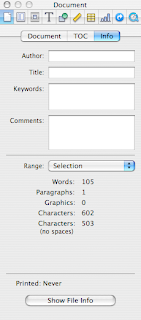

(picture on the left shows word count for the quoted text from Walt Mossberg's article.)

OK it's not at the bottom of your page, but it is at a glance's distance. Update (Jan 2012): Current versions of iWork/Pages show word count at the bottom of the page. Fuller count features – characters, lines, paragraphs etc. are in Document Inspector.  

Pages will remember that you had two Inspectors open and after you'd closed a document or quit the programme a new document will open with two Inspectors again, one of them ready to show Word count. Document Info Inspector can be positioned wherever it is most convenient for you - at the bottom of the screen for instance, if you want to stick with your Word habits. (Please read about word count in Pages on this blog here)

I was also mildly surprised at the comment that invisible formatting marks are harder to find. Yes, Word has the paragraph sign in the Toolbar which shows invisibles, but in Pages there is an easy to remember (and to type with either left or right hand) shortcut


Command+Shift+i for showing/hiding invisibles and Command+Shift+l for showing/hiding the layout grid.


In the Menu this command is under View.
(Please read a previous article on this blog about the two shortcuts here)


As a matter of principle I don't use AutoCorrect (how do you auto correct form when it should be from? and vice versa?) or autoanything and am against introducing into Pages the AutoSave function (horror: boss sees your autosaved 'draft' comments on her memo! you meant to delete them, but too late...) I have just looked at AutoCorrect options in Pages and in Word. They don't seem to be very different to me and both offer customisation.

I started working in Pages three years ago when work on the English language magazine for Normandy began. Over that period I have done a substantial amount of work in Word, including translations of two books from English into Russian and numerous articles from Russian into English. Over time I noticed that I was getting increasingly frustrated with Word, mostly because of its cluttered look, but also because I felt that somehow it took me longer to do word processing operations in Word than in Pages. Word looses to Pages in exactly this presence of too many formatting features, most of which user may not even need. In the end, when the last batch of translations came from my client in Word, I simply copy/pasted the text into Pages, did all the work, including proofing, referencing and word/character count, there and then copy/pasted the finished document back into Word to send to the client. Even though many of my co-workers and clients send me their documents in Word, my feeling is that there is less and less room for Word in what I do. In many cases I don't even open Word docs in Word, but in Pages or TextEdit.

Writing, editing and proofing tools in Pages, in my opinion, are superior to that of Word. In my line of work I find very useful the ability to check variations in spelling (British English/American English) with the built-in Oxford American dictionary, richer than the Word dictionary. The programme's Writing Tools (Edit Menu) also allow, again, direct from your open document, to do Google, Wikipedia and Spotlight searches. The former two are invaluable for editors, proofers and, I suppose, researchers, while the latter makes it easy to track numerous documents relating to a particular subject. Spotlight works from practically all Mac applications - Mail, Address Book etc.

Two general observations:

1- iWork is a developing new software - the progress from the first 2005 version to the latest is astounding. It has become much more than an office productivity suite. It is not clear to me where Apple intends to take it from here. I suspect that, concentrating on sales of affordable, status-sensitive hardware (iPhone, iPod) and on its 'switch campaign' (bringing Mac computers back into the mainstream) they simply don't have the resources to promote iWork as well as it deserves. Or it may be that Apple is just not ready for this. It may be, I also suspect, that Apple does not yet WANT to overmarket iWork so as not undermine its own top of the line design products.

2 - Comparing iWork with Office is not entirely correct, nor fair, I think. iWork gives ordinary self-taught users immense design power, up until recently only available to professionals. And it complements other applications and tools that come preinstalled on Macs - iPhoto, Preview, Mail, Safari, Address Book. So, in fact, iWork is not so much a stand-alone product like Office, but a naturally integrated Apple Mac application. I am, of course, partial, but in all honesty I'd compare Word to TextEdit (old Simple Text), the preinstalled Mac word processor, rather than Word to Pages. Apple has enhanced TextEdit over the last few years to the point that most day to day word processing tasks (letters, memos, lists etc.) can be done in TextEdit. It now takes photos and other graphics too. Font Panel and Colour Palettes in TextEdit are the same as in Pages. Instead, I'd measure iWork against InDesign and Quark, or MS Publisher. In fact, www.stocklayouts.com, a commercial web-site offering professionally designed templates, has recently added iWork/Pages to the list of compatible programmes, which also includes InDesign, Quark, Corel, Illustrator, Publisher and, yes, Word.

Thursday, September 11, 2008

iWork/Pages community grows


This is a quick note of thank you to readers of this blog - the number of monthly visits has just passed the 1000 mark.

I am glad so many iWork/Pages users find my notes helpful and interesting.

To read how I Work in Pages started, what it's about and a selection of readers' comments check this previous article.

Tuesday, April 08, 2008

Transferring Word documents into Pages projects


Here is a fast and reliable method of transferring Word documents to a Pages project:

- drag and drop the Word document onto the Pages icon in the Dock. Word doc opens in Pages with all the formatting, icluding objects (photos, graphs etc.) accessible via the Pages tools;

- open Word doc to check that nothing is lost in transfer and that visuals look the same in Pages;

- adjust/change fonts, visuals, sizes, remove or ad blank paragraphs.

- if you need only one element from the original Word doc (e.g. picture, chart, graph, text box), you can copy/paste it/them from your working Pages doc (Word doc opened in Pages) into the final Pages project.

Quite often my clients send in their files in Word format. Copy-pasting straight from Word doesn't work well. Graphs and tables pasted straight from Word could be difficult to resize. And there is often a risk of losing part of the artwork - when, for instance, a panel or a small graphic feature are done as a separate object in Word they could be 'missed' when copy-pasting.

Dropping the Word document onto the Pages icon gives me a 'synchronised' Pages file - I can immediately see all formatting as I would in a Pages project. For example, a small ad text box may not have the required dimensions in Word. Instead of changing the box in Word I now can do it easily in Pages. A picture pasted from Word could be resized, masked or moved around the Pages document.


Remember: Word files could be opened by many Apple applications. You DON'T need MS Office or Word to open MS documents. To check what's in a Word doc just drop onto TextEdit (simple text) icon - and it opens fine.


Likewise, Excel documents could be opened in Numbers and exported back into Excel.

Check these earlier articles on mastering workflow between Word and Pages:
- Sharing and teamwork in Pages
- Opening Word documents in Pages
- Importing Word documents into Pages
- Sorting out tables created in Word

Tuesday, March 25, 2008

Microsoft's newspeak, Apple's (good) oldspeak


Microsoft uses Orwell's Newspeak while Apple uses proper (Standard) English, or Oldspeak in the novel 1984.

I was working with spreadsheets today using both MS Excel and Apple's iWork/Numbers and noticed that where
Apple menu options offer a choice between
Hide and Show,

corresponding
MS Excel menu options choice is between
Hide and Unhide.


Exactly according to the great principles of Newspeak where good and bad were replaced by good and ungood.

Did anyone notice?
1984 (Signet Classics)

Monday, March 03, 2008

How to design coupons in Pages


If you work on a periodic publication with a distribution list or a subscription base, sooner or later you'll face a task of designing a coupon grid. Marketing and publicity material, surveys and community publications also often use coupons or mail-back cut-out forms.

Many coupons I'd seen before designing one of my own have grids with 'open tops'. That is, letter/number cells have borders on the sides and at the bottom, but not at the top.


Use tables to design them in Pages.


Click on the Table icon in the toolbar, or choose Table from Insert menu to import a table into your document.

In Table Inspector select number of rows (1) and columns (18 in my example).

Choose width, style and colour of table borders.

Select the top border of the table (see picture below). In Table Inspector>Cell Borders click on drop-down menu and select None.


Now you have a nice looking grid like in the coupon above. If you need several rows for your coupon select the whole table and duplicate (Command+D) or copy-paste it.

This is what makes tables different from other objects - you can select any side of any cell in the table separately. Click on the table grid line once to select the grid line for the whole of the table (picture above). Click again to select the side of just one cell (picture below).


You can't select each individual side of an Object or a Text Box. This particular feature of tables makes them an attractive tool for various other design tasks.

Check these earlier articles:
- Tables, an underused layout tool
- Sorting out Tables and Charts in Word
- Separating ads by an 'open corner'

Thursday, February 14, 2008

Quick Word Count in Pages


Pages offer a quick, real-time/instant view word count which is easy - and fun!


In Document Inspector (first icon on the left) click on third tab Info. Here you can see the word, line, paragraph, character and even graphics count for your document.

But this isn't all. If you click on your text and start dragging cursor to highlight a selection of text the Inspector gives you the count of all the elements - words etc. as you drag.


Being able to check word count (character count) is important in many ways.

In publishing it is one of the main methods of checking how much space needs to be allocated to copy within the pages of a publication. It is a means of coordinating work between editors, writers and production.

For writers, journalists and translators word count is often used as a valuation tool - you get paid by the word.

Please also read this article, published later on I work in Pages:
Word count in Pages: use two Inspectors

Read more in my new book 'iWork for Mac OSX Cookbook' (2012). Follow me on Twitter at iworkinpages, like my page I Work in Pages on Facebook and add me to your circles on Google+.
Related Posts Plugin for WordPress, Blogger...

Copyright

© 2006-2010, 2010-2017 Alexander Anichkin, All Rights Reserved.
All content is original and was created by me, the author and publisher of I Work in Pages.
Quotations and images are attributed where applicable.
No republication without express prior permission.
Blog template by Blogger with customisation by the publisher.